

A guide to managing and monitoring SDK integrations across client applications within the Quepass platform. The SDKs section enables clients to oversee all SDKs configured for their applications, review onboarding and verification settings, manage session parameters, and monitor operational status. Each SDK represents an integration used to perform onboarding and verification flows across web or mobile platforms. The SDKs module can be accessed from the Client Dashboard sidebar under SDK → SDK List.Documentation Index
Fetch the complete documentation index at: https://docs.quepass.com/llms.txt
Use this file to discover all available pages before exploring further.
1. SDKs Interface
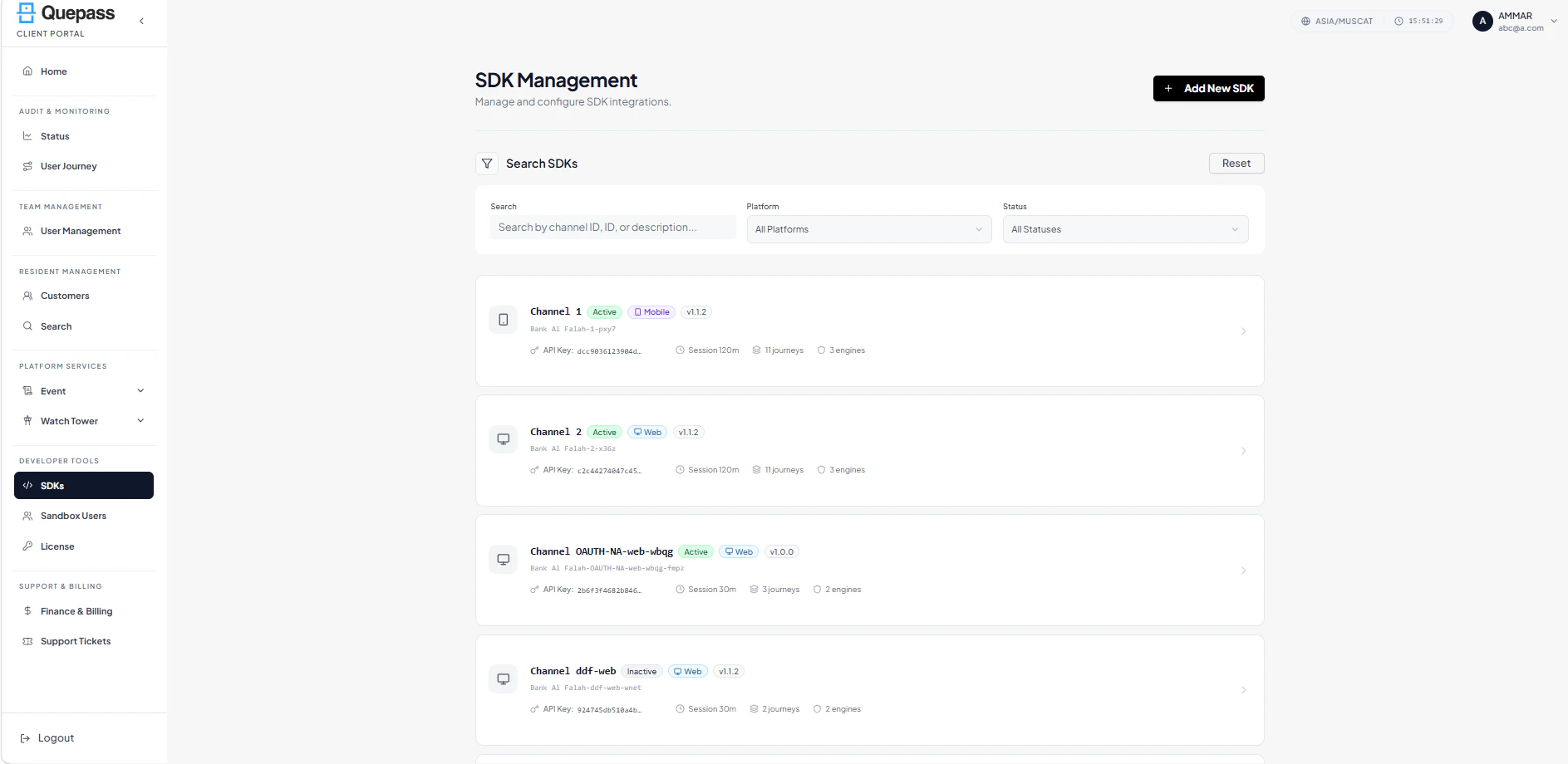
The SDKs interface combines summary cards, action controls, and SDK-level configuration details in a structured layout. SDKs The layout includes:- SDK summary cards
- Top action controls
- Filters and search panel
- Individual SDK card listing
2. Using the SDKs Module
The SDKs section allows clients to manage and analyze SDK integrations at both aggregate and individual levels.SDK List Overview
The SDK List displays all SDKs created under the client account. Each SDK card provides a quick summary of its configuration and current status. For each SDK, clients can view: SDK Name / Identifier — A unique name used to identify the SDK Status — Indicates whether the SDK is Active or Inactive SDK Version — Version of the SDK in use Session Timeout — Configured timeout duration for verification sessions Platform Type — Mobile or Web usage Onboarding Methods — Enabled onboarding flows, e.g., Passport, ID Card, NFC, Face Verification Checks — Enabled verification processes, e.g., Face SDK Cards
SDK Actions
Each SDK card includes action controls that allow clients to: View SDK Details — Click on the card or “Click to view details” to access detailed configuration Manage Settings — Use the settings icon to update SDK parameters or permissions These controls provide full operational oversight of each SDK integration.Add New SDK
The Add New SDK button (top-right) allows clients to create a new SDK integration by selecting:- SDK Name / Identifier
- Platform Type (Web / Mobile)
- Onboarding Methods (e.g., Passport, ID Card, NFC, Face)
- Verification Checks (e.g., Face)
- Session Timeout and other SDK-specific parameters

3. Operational Use Cases
The SDKs module is commonly used for:- Monitoring SDK deployment status (Active vs Inactive)
- Reviewing SDK versions and session timeout configurations
- Validating platform-specific SDK usage (Web / Mobile)
- Managing onboarding methods and verification checks
- Creating new SDK integrations for client applications
- Supporting operational oversight of verification flows and user onboarding