

A guide to activating, monitoring, and managing platform licenses within the Quepass platform. The License Management section enables clients to control access to platform services and features by managing licenses. It provides centralized visibility into license status, validity periods, and client associations. The License Management module can be accessed from the Client Dashboard sidebar under License → License Management.Documentation Index
Fetch the complete documentation index at: https://docs.quepass.com/llms.txt
Use this file to discover all available pages before exploring further.
1. License Management Interface
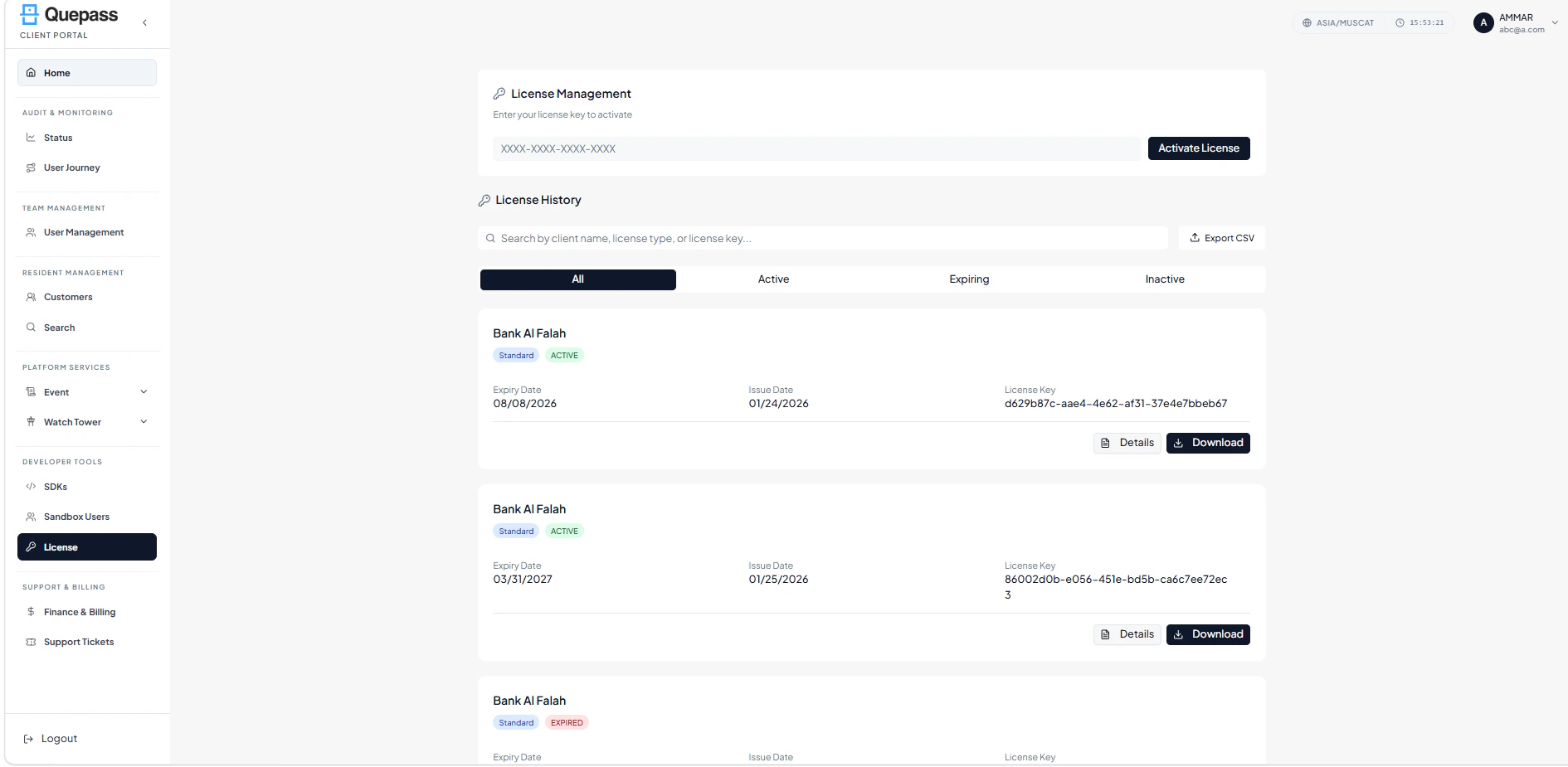
The License Management interface combines activation controls, search and filtering options, and license-level details in a structured layout. LicenseManagement The layout includes:- License activation input and controls
- License summary metrics (optional)
- Search and filtering panel
- License card listing
2. Using the License Management Module
The License Management section allows clients to manage licenses at both individual and aggregate levels.License Activation
At the top of the page, clients can activate a new license using a valid license key. Steps to Activate a License:- Enter the provided License Key in the input field
- Click Activate License to enable the license

License History
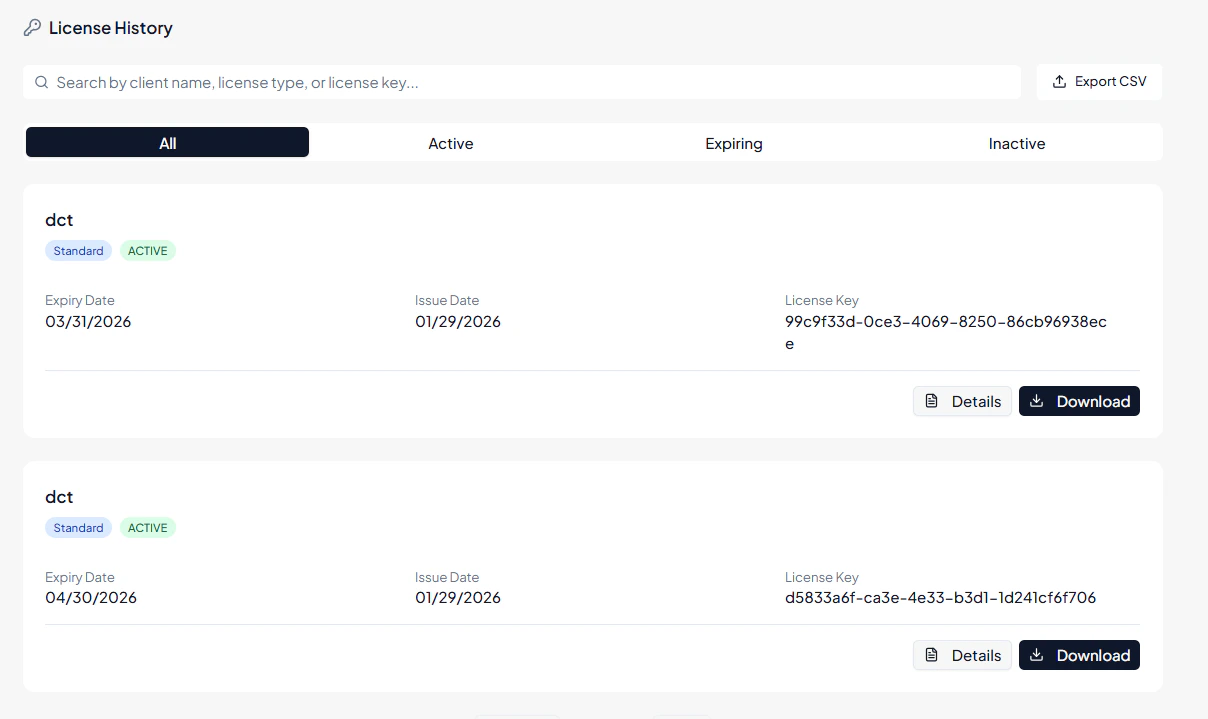
The License History section displays all licenses associated with the client account. Search & Filters:- Search by Client Name — Quickly find licenses linked to a specific client
- Status Filters — View licenses by status:
- All
- Active
- Expiring
- Inactive
- Export CSV — Download license data for reporting or record-keeping
License Cards Overview
Each license entry is displayed as a card with detailed information: Client Name — Organization associated with the license License Type — Example: Standard License Status — Active, Expiring, or Inactive Expiry Date — Date when the license will expire Issue Date — Date the license was issued License ID — Unique identifier for the license License Key — Activation key linked to the license Status Indicator — Visual confirmation when the license is active This layout provides at-a-glance insight into license details and operational status.License Actions
Each license card includes action buttons that allow clients to: View Details — Open full license information and configuration Download — Download license data for offline reference or compliance purposes License Actions
3. Operational Use Cases
The License Management module is commonly used for:- Activating new platform licenses
- Monitoring active, expiring, and inactive licenses
- Managing license associations with specific clients or organizations
- Reviewing license validity periods and compliance requirements
- Exporting license data for reporting or offline tracking
- Supporting platform access control and service entitlement