

A guide to managing platform users, access roles, and security settings within the client environment of the Quepass platform. The User Management section allows clients to create and manage user accounts, assign access roles, monitor account status, and enforce security configurations such as two-factor authentication (2FA). It serves as the centralized administration interface for controlling organizational access within the Quepass platform. The User Management module can be accessed from the Client Dashboard sidebar under Team Management → User Management.Documentation Index
Fetch the complete documentation index at: https://docs.quepass.com/llms.txt
Use this file to discover all available pages before exploring further.
1. User Management Interface
The User Management interface is designed to help administrators efficiently monitor and control platform access for all users within their organization. User Management The layout includes:- User statistics summary cards
- Search and filtering controls
- Paginated user directory
- Role and status indicators
- Security monitoring controls
- User creation functionality

2. Using the User Management Module
The User Management section enables administrators to review, create, and manage platform users at both summary and detailed levels.Reviewing User Statistics
The summary dashboard provides a quick overview of organizational user metrics. The statistics cards display: Total Users — Total number of registered users within the organization Active — Number of currently enabled user accounts Inactive — Number of disabled or suspended accounts Administrators — Number of users assigned administrative privileges User Statistics
Searching Users
The Search Users field allows administrators to quickly locate users by:- Full name
- Email address
- Assigned role

Reviewing the User Directory
User accounts are displayed in a structured table format for easy review and monitoring. Each user entry includes: User — User name and email address Role — Assigned permission level (e.g., Admin) Status — Current account state (e.g., Active, Inactive) Security — Security configuration status (e.g., 2FA enabled) Activity — Latest recorded activity Actions — Additional management options User Directory
Adding a New User
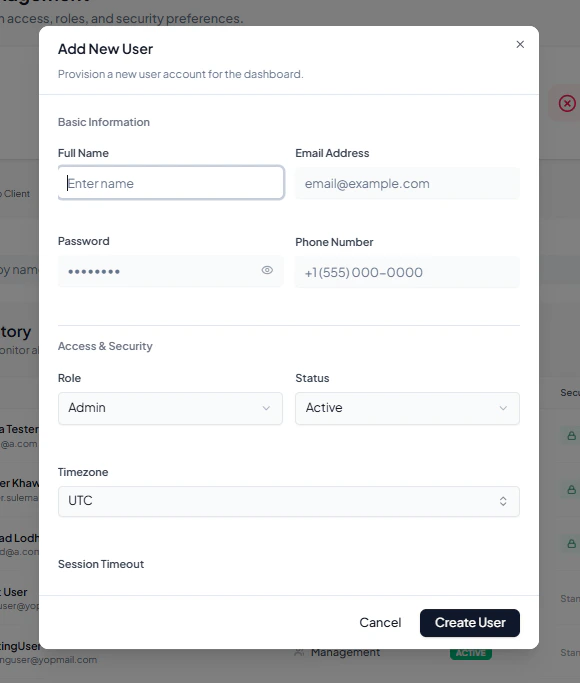
Administrators can create new user accounts using the Add User option located at the top-right of the interface. The Add New User form includes the following sections:Basic Information
Administrators must provide:- Full Name
- Email Address
- Password
- Phone Number
Access & Security
The administrator can configure: Role — Defines the user’s permission level Initial Status — Determines whether the account is Active or Inactive Timezone — Assigns the preferred timezone settingSecurity Preferences
Optional security settings include:- Enforce 2FA
- Email Alerts
3. Operational Use Cases
The User Management module is commonly used for:- Creating and onboarding new users
- Managing administrator permissions
- Enabling or disabling user access
- Enforcing two-factor authentication policies
- Monitoring inactive accounts
- Managing organizational access control
- Supporting user lifecycle administration